
Tracking Predecessors and Successors in complex MSP Schedule
- Created
- 6
- 5
I'm in the process of creating a Schedule which is increasingly becoming more complex with more tasks and scope being added daily, noting P6's "Go To" function allowing you to trace up and down paths of successors and predecessor paths, is there a similar function in MSP that allows to track a number of paths and predecessors and successors (outside of Activity Path function)nwhen there may be several dozen and numerous paths in and out of an activity to different parts of scope?
I know the Ctrl + G function to allow to go to different IDs but this detracts from the original activity that I'm concerned with, is there an alternative?
Also, in having a finish date for a milestone confirmed but not the work before this, can you set a Finish no later than or similar constraint on a milestone and set all predecessor activities to "as late as possible" to schedule back from that date? As I've heard "Schedule from project end" can create issues?
Thanks again,
6 replies
Oldest first- 0RMRodel Marasigan ·
Hi,1) On the menu click View
Hi,
1) On the menu click View and tick Detail. It will show you a detail window at the bottom and make sure that the Task Form was selected on the drop down. Right click on the detail window and select Predessesor and successor. From there you can see the relationship of each task selected then you can use Ctrl + G funtion to go to task shown on the predessesor or successor window. It similar but not the 100% the same.
2) On the Milestone Task, double click and a Task information window will popup. Select Advance tab and select the contraint Type and Constraint Date. Alternatively, right click the column headers and select insert column and press "c" and select Contraint Type then do the same for Constrain Date.
- 0RDRafael Davila ·
Microsoft Project: Filter
- 0TBTom Boyle ·
UK Planning,The task path bar
UK Planning,
- The task path bar styles are the primary built-in method for tracing predecessor and successor logic paths in MSP. Even with the aid of the task-path filter macros that Rafael linked, however, they can become unwieldy in complex projects.
- The Predecessors list on the Task Inspector pane (“Inspect Task” on the Task ribbon) allows click-tracing (like GoTo in P6) – but only backward through driving task links. Click tracing of successor paths and non-driving paths in either direction is not supported.
- The number of MSP users needing more than this is pretty low. There are some pretty good add-ins available, but they are not free. Here’s one that does full-scope click tracing using a “jump” button (throwback to P3): https://boyleprojectconsulting.com/tomsblog/2017/06/30/inspecting-task-links-with-bpc-logic-filter-for-microsoft-project/ [See also Video – Inspect and Jump through Network Logic Links Using BPC Logic Filter – LLI Edition].
ALAP constraints in MSP are fundamentally different from the same-named constraints in P6. Avoid them in forward-scheduled projects. If you want to remove float from a chain of activities, then using a "SNET" constraint at the front of the chain will be simpler in the long run. Good luck, tom
- 0RDRafael Davila ·
The “Too Late Is Possible”
The “Too Late Is Possible” constraint in Microsoft Project - Primaned Academy
- In P6 the “As Late As Possible” constraint will use the free float. In MSP this same constraint will use the total float (P6 Float = Slack in MSP).
- Unless you want to make all tasks critical, you can better not use the “As Late As Possible” constraint in MSP. There is no good way to have activities as late as possible before another activity (For example, you don’t want to have the activity delivery a lot of days before the activity production will start). You can only manually add a “ Start No Earlier Than” on the delivery activity however this will make the planning undynamic.
- 0RMRodel Marasigan ·
I write a simple VBA code to
I write a simple VBA code to mimic the Primavera (P6) Relationship GoTo function. It allows the user to trace up and down paths of successors and predecessors. The Add-In function will automatically add to the Add-In menu in MS Project.
Please follow below steps to install in your MS Project Global.MPT
- On MS Project ribbon menu, click DEVELOPER ribbon or alternatively press “Alt F11”. A Visual Basic window will open
- On Visual Basic menu select Tools then click References
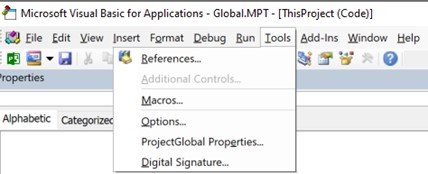
3. A References window will open and tick Microsoft Forms 2.0 Object Library (FM20.DLL) then click OK.
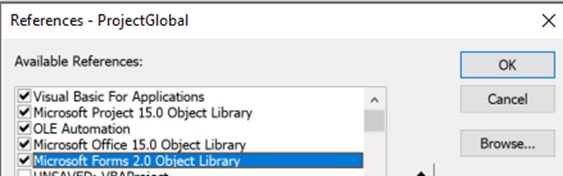
4. On Visual Basic menu select Insert then click Class Module
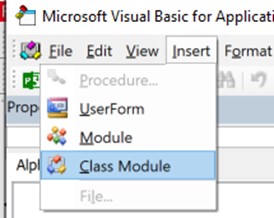
5. On Class Module properties change the name to “clsFrm”. see below
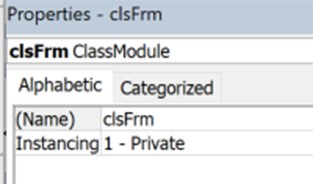
6. Once done select the clsFrm module and double click.
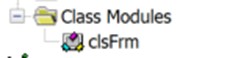
7. A blank VBA sheet will show. Copy and Paste below VBA Code
'Start copy from line below
Option Explicit
'!!!!!!!!!!!!!!!!!!!!!!!!!!!!!!!!!!!!!!!!!!!!!!!!!!!!!!!!!!!!!!!!!!!!!!!!!!!!!!!!!!!!!!!!!!!!!!!!!!!
'This VBA code is written by Rodel Marasigan, 05Oct2021
'The purpose of this Class Module is to mimic the Relationship Tab in Primavera P6
'for the user to have a GoTo function to each Predecessors or Successor of Task selected
'By Double Clicking the selected Task in the Relationship Form, it automatically GoTo Task selected
'This VBA code requires to Enable the following references or equivalent (Tools > References)
'Microsoft Forms 2.0 Object Library
'Microsoft Project 15.0 Object Library
'Visual Basic For Applications
'!!!!!!!!!!!!!!!!!!!!!!!!!!!!!!!!!!!!!!!!!!!!!!!!!!!!!!!!!!!!!!!!!!!!!!!!!!!!!!!!!!!!!!!!!!!!!!!!!!
Public mFrm As Object
Public WithEvents mLst As MSForms.ListBox
Public WithEvents mBtn As MSForms.CommandButton
Public mLbl As MSForms.Label
Public oCls As Object
Private vbCom As String
Public tSel As Task
Private Sub Class_Initialize()
Set oCls = CreateObject("Scripting.dictionary")
End Sub
Public Function fnFrmVal()
fnNewUsf "Relationship", 328, 372
fnNewLst "lstPred", 24, 6, 115, 350
fnNewLst "lstSucc", 163, 6, 115, 350
fnNewBtn "bCls", 18, 72, 282, 278
fnNewLbl "lblPred", "Predecessor", 12, 90, 0, 6, 1
fnNewLbl "lbl1", "ID", 12, 30, 12, 6, 2
fnNewLbl "lbl2", "Name", 12, 96, 12, 42, 2
fnNewLbl "lbl3", "Type", 12, 30, 12, 288, 2
fnNewLbl "lbl4", "Lag", 12, 24, 12, 324, 1
fnNewLbl "lblSucc", "Successor", 12, 90, 138, 6, 1
fnNewLbl "lbl5", "ID", 12, 30, 150, 6, 2
fnNewLbl "lbl6", "Name", 12, 96, 150, 42, 2
fnNewLbl "lbl7", "Type", 12, 30, 150, 288, 2
fnNewLbl "lbl8", "Lag", 12, 24, 150, 324, 1
fnNewLbl "lbl9", "Select Task then Double Click to GoTo…", 12, 162, 282, 36, 1
Call UForm_Initialize
mFrm.Show
End Function
Function fnNewUsf(ByVal frName As String, ByVal mH As Long, ByVal mW As Long)
Set mFrm = ThisProject.VBProject.VBComponents.Add(3)
vbCom = mFrm.Name
VBA.UserForms.Add (vbCom)
Set mFrm = UserForms(UserForms.Count - 1)
With mFrm
.Caption = frName
.Height = mH
.Width = mW
End With
End Function
Function fnNewLst(ByVal lstN As String, ByVal mT As Double, ByVal mL As Double, ByVal mH As Double, ByVal mW As Double)
Dim o
Set o = mFrm.Controls.Add("forms.ListBox.1")
If o = True Then Exit Function
Dim c As New clsFrm
Set c.mFrm = mFrm
Set c.mLst = o
With c.mLst
.Name = lstN
.Top = mT
.Left = mL
.Height = mH
.Width = mW
.ColumnCount = 4
.BoundColumn = 1
.ColumnWidths = "30 pt;255 pt;20 pt;40 pt"
.ColumnHeads = False
End With
oCls.Add lstN, c
Set c = Nothing
End Function
Function fnNewBtn(ByVal fName As String, ByVal mH As Double, ByVal mW As Double, ByVal mL As Double, ByVal mT As Double)
Dim o
Set o = mFrm.Controls.Add("forms.CommandButton.1")
If o = True Then Exit Function
Dim c As New clsFrm
Set c.mFrm = mFrm
Set c.mBtn = o
With c.mBtn
.Name = fName
.Caption = "Close"
.Top = mT
.Left = mL
.Height = mH
.Width = mW
End With
oCls.Add fName, c
Set c = Nothing
End Function
Function fnNewLbl(ByVal fName As String, ByVal mCap As String, ByVal mH As Double, ByVal mW As Double, ByVal mT As Double, ByVal mL As Double, ByVal tA As Double)
Dim o
Set o = mFrm.Controls.Add("forms.Label.1")
If o = True Then Exit Function
Dim c As New clsFrm
Set c.mFrm = mFrm
Set c.mLbl = o
With c.mLbl
.Caption = mCap
.Top = mT
.Left = mL
.Height = mH
.Width = mW
.TextAlign = tA
End With
oCls.Add fName, c
Set c = Nothing
End Function
Private Sub mLst_dblClick(ByVal Cancel As MSForms.ReturnBoolean)
Dim e As Integer
On Error Resume Next
If Len(mLst.Value) > 0 Then
EditGoTo ID:=mLst.Value
e = Err.Number
On Error GoTo 0
If e = 1101 Then
MsgBox "Selected Task is hidden...please Un-Hide or remove Filter first", vbInformation
Exit Sub
End If
mFrm.lstpred.Clear
mFrm.lstsucc.Clear
Call UForm_Initialize
Else
MsgBox "Please Select Task and double click to GoTo...", vbInformation
End If
End Sub
Private Sub mBtn_Click()
mFrm.Hide
Unload mFrm
End Sub
Private Sub Class_Terminate()
Dim VBComp As Object
If vbCom <> "" Then
Set VBComp = ThisProject.VBProject.VBComponents(vbCom)
ThisProject.VBProject.VBComponents.Remove VBComp
End If
Set oCls = Nothing
End Sub
Function fnTaskL(ByVal sTask As String, ByVal sLink As String, oList As ListBox)
Dim i As Long
Dim sTemp As String
Dim sTable As Variant
Dim cTable As String
Dim y As Integer
Dim lText As String
Dim vText As Variant
Dim l As Long
Dim x As Long
sTemp = ""
x = 0
sTable = Split(sLink, Chr(44))
For i = LBound(sTable) To UBound(sTable)
cTable = sTable(i)
For y = 1 To Len(cTable)
If (Mid(cTable, y, 1) = "F" Or Mid(cTable, y, 1) = "S") And (Mid(cTable, y + 1, 1) = "F" Or Mid(cTable, y + 1, 1) = "S") Then
lText = CStr(sTemp)
lText = lText & Chr(44)
sTemp = Mid(cTable, y, 1)
ElseIf (Mid(cTable, y, 1) = "+" Or Mid(cTable, y, 1) = "-") Then
lText = lText & CStr(sTemp)
lText = lText & Chr(44)
sTemp = Mid(cTable, y, 1)
Else
sTemp = sTemp & Mid(cTable, y, 1)
End If
Next y
If sTemp <> "" Then
lText = lText & CStr(sTemp)
End If
vText = Split(lText, Chr(44))
oList.AddItem
l = UBound(vText)
With oList
.List(x, 0) = vText(0)
.List(x, 1) = fnGetN(vText(0))
If l > 0 Then
.List(x, 2) = vText(1)
Else
.List(x, 2) = "FS"
End If
If l > 1 Then
.List(x, 3) = vText(2)
Else
.List(x, 3) = "0"
End If
End With
x = x + 1
sTemp = ""
lText = ""
Next i
End Function
Function fnGetN(ByVal sT As String) As String
Dim o As Object
Dim t As Task
Dim s As String
Set o = ActiveProject
For Each t In o.Tasks
s = CallByName(t, "ID", VbGet)
If s = sT Then
fnGetN = CallByName(t, "Name", VbGet)
Exit Function
End If
Next
End Function
Private Sub UForm_Initialize()
Dim tS As String
Dim tP As String
Dim vP As Variant
Dim vS As Variant
Dim t As String
Dim oT As ListBox
Dim i As Long
Set tSel = ActiveCell.Task
On Error GoTo ErrorHandle
t = tSel.ID
tP = CallByName(tSel, "Predecessors", VbGet)
Set oT = mFrm.lstpred
Call fnTaskL(t, tP, oT)
tS = CallByName(tSel, "Successors", VbGet)
Set oT = mFrm.lstsucc
Call fnTaskL(t, tS, oT)
Exit Sub
ErrorHandle:
MsgBox Err.Description
End Sub
'End of clsFrm VBA Code
8. Select ThisProject (Global.MPT) and double click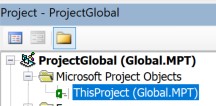
9. Copy and Paste below code on the blank Global.MPT code window
'Start copy from line below
Option Explicit
Sub Auto_Open()
Dim ContextMenu As CommandBar
' If context menu has been created before, let's delete it to avoid duplicates.
Call DeleteItemContextMenu
' Set ContextMenu variable for the cell context menu.
Set ContextMenu = Application.CommandBars("Tools")
With ContextMenu.Controls.Add(Type:=msoControlButton, before:=1)
.OnAction = "sFrmRel"
.FaceId = 190
.Caption = "RELATIONSHIP"
.Tag = "New_Item_Context_Menu"
End With
End Sub
Sub DeleteItemContextMenu()
Dim ContextMenu As CommandBar
Dim ctrl As CommandBarControl
Dim x As Integer
' Set ContextMenu for cell context menu.
Set ContextMenu = Application.CommandBars("Tools")
' Delete the custom controls with the Tag : New_Item_Context_Menu.
For Each ctrl In ContextMenu.Controls
'Debug.Print ctrl.Caption
If ctrl.Tag = "New_Item_Context_Menu" Then
ctrl.Delete
End If
Next ctrl
End Sub
Sub sFrmRel()
Dim MyForm As New clsFrm
MyForm.fnFrmVal
Set MyForm = Nothing
End Sub
'End of Global.MPT VBA code
10. Save and Close Visual Basic window.Every time user opens a MS Project MPP, a Add-ins ribbon will added to the menu as shown below.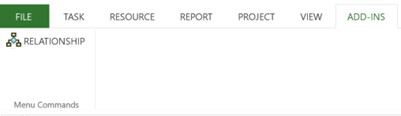
Enjoy!!! If you have any issues, please let me know.
Cheers
Log in or join to reply
ProjectControls.com is free to join. Members can post questions, reply, vote and follow discussions.
Existing members: your original username and password still work. Forgot password?